Showing posts with label PC. Show all posts

How to create a WiFi hotspot in a web browser UC Browser

How to create a WiFi hotspot in a web browser UC Browser

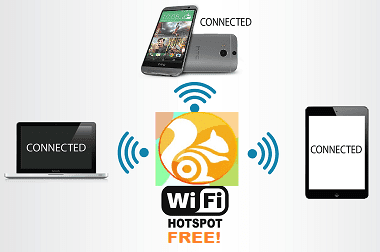
How to create a WiFi hotspot in a web browser UC Browser - To be able to put the computer into a free WiFi hotspot for other devices, normally we would have to use professional software such as Wi-Fi with Wi-Host software , or mHotspot . The software will support the users can turn their laptop is using WiFi to become places of smartphone devices, or even for other laptops.
However, things will become a lot simpler when we use the browser UC Browser. UC Browser for web browsing owned computer friendly interface, speed of access and rapid download files. Special mention must turn the computer features a free WiFi hotspot. We will not need to install any other program, which can be used immediately UC Browser browser to support other devices that can catch WiFi.
Play on your computer by WiFi UC Browser
Note, this feature will only apply to computer wireless network card available
First you download the browser UC Browser for PC, follow the links below:
Download UC Browser for PC browsers
How to create a WiFi hotspot in a web browser UC Browser
Step 1:
Once you've downloaded the file to your computer UC Browser, you proceed to install the browser. First of all, we will click on the Download and Install.
Step 2:
Then we wait for the browser installed on your computer UC Browser success offline.
Soon it will appear the interface of UC Browser. Here a small dialog box appears and asks the user may want to put UC Browser as the default browser on your computer or not.
Step 3:
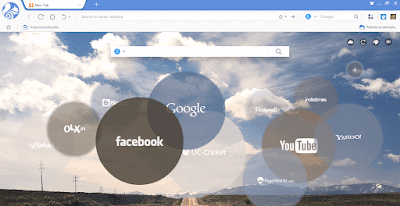
Here is the interface of the web browser on your computer UC Browser.
How to create a WiFi hotspot in a web browser UC Browser

Step 4:
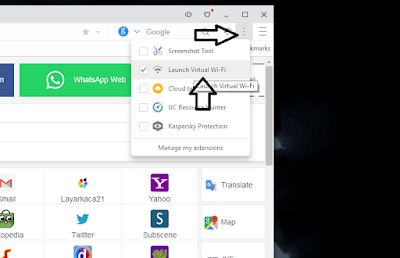
To find the next free WiFi features found on the web browser UC Browser, in the main interface, we will click on the icon 3 vertical dots as shown below, then select the area to Launch Virtual WiFi features. Immediately WiFi icon will appear on the interface.
How to create a WiFi hotspot in a web browser UC Browser

Step 5:
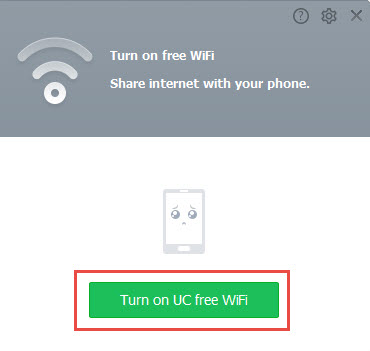
Next, when you click on the WiFi icon on the browser interface will appear a small dialog box. Here, you click the Turn on UC free WiFi offline.
How to create a WiFi hotspot in a web browser UC Browser
You wait a few seconds to set the browser UC Browser WiFi network offline.

Step 6:
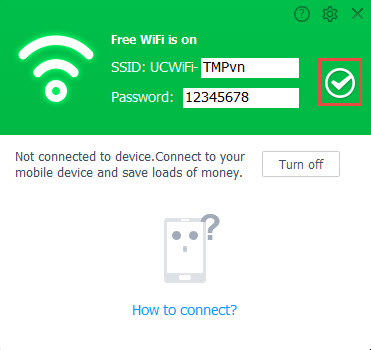
Just then the browser interface dialog box will appear with the information of WiFi has been established, including the name and password that WiFi.
How to create a WiFi hotspot in a web browser UC Browser

If you want to edit information can name and password for WiFi, users click on the pen icon in the interface as well. If you want to hide your password, click the circular icon below.

Step 7:
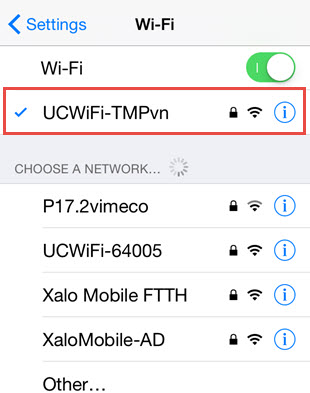
After you have completed the name change as well as passwords for WiFi, we simply use any one particular device, from laptop to smartphone to search for WiFi network from a computer, via the browser UC Browser.
We just need to enter the correct password that was able to connect to WiFi and surf are already there.
How to create a WiFi hotspot in a web browser UC Browser

Very simple and convenient is not it ?! Just UC Browser Web browser installed on your computer can be used as a base station laptop absolutely free WiFi. In addition, UC Browser also owns many other useful features, bringing to enjoy the surfing experience to the users.Do not ignore the browser UC Browser for PC, browser and smartphone devices offline.

How to Connect and Configure - Google Chromecast

Google Chromecast - How to Connect and Configure

How to Connect and Configure - Google Chromecast

Pending that is made available Google Chromecasts Ultra here is a short and simple guide on how to connect the device to the TV, and transmit various multimedia content from our device.

REQUIRED
The only things we need are Google Chromecast , a TV that has an HDMI input Free   and a smartphone (or tablet) which must be installed in the 'Google Cast application, available both for Android to iOS . Chromecasts works even if connected to a Monitor (such as those for computers), the important thing is that this is provided with an HDMI jack and speakers.
Some Android devices already have the Google Cast application integrated into the system, to find out if your device is fitted you can test the application's icon is displayed in the control center.

CONNECT CHROMECAST
In device packaging we will find everything you need to connect it to the TV, so we have to do is enter your Chromecast in a free HDMI and connect it to a power outlet. We can use either the 'Adaptor, consisting of a USB cable and the appropriate wall outlet to bind it, or take advantage of the USB ports of television using just the cable.
If we decide to use the second method it is important not to use one of the sockets labeled "Service" why so Chromecast will not receive power.
Once you have arranged everything we should be able to see on television the main screen of the device, in case this does not happen we have to navigate with the remote or the buttons on the monitor, between the sources connected to the television until we find Chromecasts. To speed up this process would be good to remember the name of the socket used by the device.

CONFIGURATION
After connecting the device to the television we can proceed to configure it. Now it's time to install the application on our device and open it. We accept the terms of use and proceed to the screen that asks us what we want to configure your Chromecast. Once we selected we must ensure that the code displayed on our device is the same as showing television.
In this step we can proceed further or change the name of your Chromecast.
Now we have to choose which line to use Wi-Fi for Google Chromecast to do just salazionarla and enter the password when prompted. It is important that the selected network is the same used by our device. At this stage Chromecasts search for updates and install them if necessary. Now we are ready to broadcast our content!

SET UP A PC OR MAC
You can also configure a computer running Windows or an iMac to transmit multimedia content. The procedure is almost identical to the one that we would use to configure a smartphone or tablet, the only difference is that we need Google Chrome.

TRANSMIT CONTENT
To broadcast the contents we must use one of the compatible applications . We connect our device to Chromecasts and launch one of these applications, now hit on the top right button that looks like the Google Cast icon and choose the device you want to convey the content. At this point, the icon will change color to inform Google Cast successfully connected. Now we are free to pass whatever we want, of course depending on the application used. We can stop the transmission at any time, simply press the button at the top right and disconnect.
I hope this article has been helpful, if you let them questions as well with a comment below!

How to recover your username and / or password from Facebook, Gmail, Hotmail, Yahoo

How to recover your username and / or password from Facebook, Gmail, Hotmail, Yahoo
If you forget the password and / or username of your email account (Hotmail,Gmail, Yahoo ...) or your favorite social network (Facebook, Twitter ...) before contacting support site In question and fill out forms, you can access the configuration options of your web browser and see if the login credentials of your account are stored there. 

How to recover your Gmail, Hotmail, Yahoo, Facebook account in Google Chrome
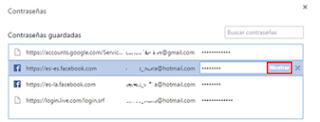
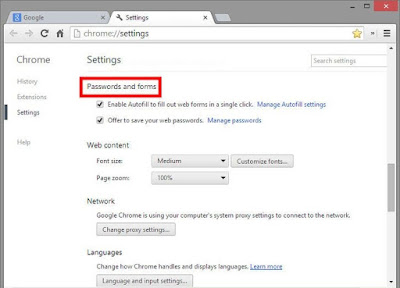
If you use Google Chrome , open the menu located at the top right corner of the browser and select Settings. Then, go to the bottom of the page and click Show Advanced Options. In the Passwords and Forms, click Manage Passwords section: 

Passwords all the sites you've logged into Google Chrome saved appear. The user name will be displayed with its respective password hidden behind points. To view the password of your account in one of the sites, select it and click Show: 

Note: To see your Hotmail or Outlook.com password, select https://login.live.com. 

What to do if you forgot your username and / or password for Gmail, Hotmail, Yahoo, Facebook in Firefox
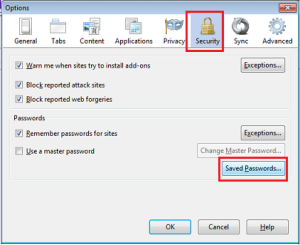
If you're using Firefox , click the Tools tab and select Options. In the Options window, go to the Security tab and click Saved Passwords: 
In the window that opens, you will be shown all the sites where you have logged in with Firefox, as well as the usernames you have used. To view the passwords, click Show passwords: 


How To Disable Autoplay YouTube on Mac and PC

How To Disable Autoplay YouTube on Mac and PC

How To Disable Autoplay YouTube on Mac and PC - Disable Autoplay YouTube on Mac and PC, as you noticed, YouTube automatically starts playing the next video, because he knows exactly what you want to see. This YouTube feature known as Autoplay is optional and can be disabled at any time. Not just finished watching a video on YouTube, you will find ready the next video. This YouTube Autoplay feature is designed to help you watch your favorite videos by viewing history.
YouTube videos in auto play mode are so closely linked to the interests of users, who do feel the hours people watching an endless stream of videos on YouTube.
The disadvantage of this function on a Mac or PC, is that if you want to share or save a video into my favorites, is not possible because YouTube charge immediately the next video.
Fortunately, YouTube AutoPlay feature can easily be deactivated with a very easy process. Follow the steps below to stop YouTube Autoplay on your Mac and PC.
How To Disable Autoplay YouTube on Mac and PC

1. On your Mac or PC, visit the website YouTube.com .
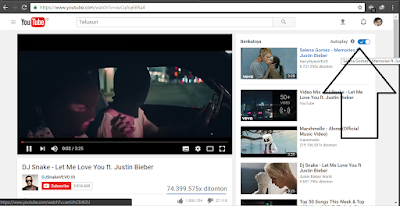
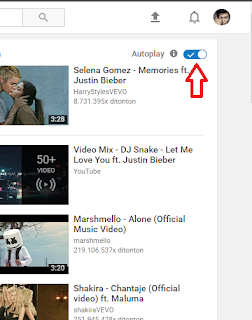
2. Once on YouTube, start watching any videos and take a look at the top right of the screen. You see the section "Up next" YouTube with the Autoplay option enabled by default.
This indicates that YouTube on your Mac or PC is set to automatically play the next related video, as soon as you have finished watching the current video.
3. To turn off automatic playback, simply move the lever next to Autoplay OFF.
How To Disable Autoplay YouTube on Mac and PC

Turn off Autoplay settings from YouTube on Mac or PC
You can also disable Autoplay YouTube on your PC or Mac using the option in the YouTube settings.
1. Visit YouTube.com on your Mac or PC.
2. Once you are on YouTube, start playback of any video
3. Pause the video and click the gear icon located near the bottom right of the video (see image below).
4. In the menu that appears, disable AutoReplay functionality of YouTube by moving the cursor close to AutoPlay in the OFF position.
We finished!