Showing posts with label Apple. Show all posts

How to Prevent iOS Notifications to Stop Playing Multimedia

How to Prevent iOS Notifications to Stop Playing Multimedia

How to Prevent iOS Notifications to Stop Playing Multimedia  - What is more relaxing to listen to the music that we like? Yes, listen to it without being interrupted by the iOS notifications! Like scratches on old vinyl they blew up a moment of reproduction, so notifications on iPhone spoil the atmosphere (if you want to call it) that is created when we hear things that we prefer. So how to prevent these notifications to interrupt the reproduction of our media? There are three possibilities, andiamole to discover together!
SILENT KEY
How to Prevent iOS Notifications to Stop Playing Multimedia

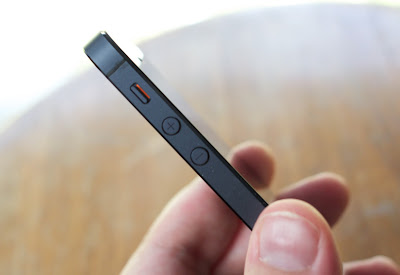
The simplest option for changing any warning is to use the switch on the left side of your smartphone. So we can always listen to music (or any other media), but we will not be interrupted by the sound of notifications. Incoming calls, however, are an exception, however, will interrupt playback until you turn on the answering machine (or the call will be interrupted).
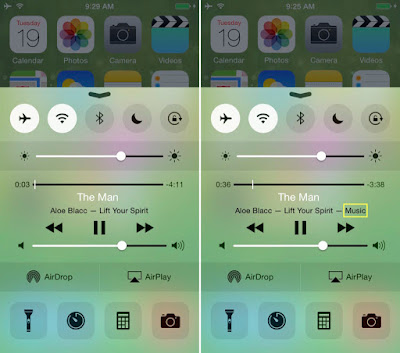
Who is in possession of one of the latest iPad, such as the ' iPad Air 2 , which do not have a swith to silently put the device, can find the silent button in the Control Center, which is activated by a swipe upwards.
DO NOT DISTURB
How to Prevent iOS Notifications to Stop Playing Multimedia
In the Control Center we can also find the key DND, that depicts the white crescent at the center of the purple disk. This mode turns off the sound of notifications and calls, is the solution for those who do not want any distrubo, in fact. Still it allows you to set a few exceptions, just go into Settings and look for the DND.
 Using this method we also have another advantage over the silent switch: once activated will see a small half-moon at the top of the screen icon that will act as a reminder, so we will remember to return to the mode you prefer.
APP FOR SINGLE
How to Prevent iOS Notifications to Stop Playing Multimedia

If you prefer a more precise approach, in order to stop only some notification, just go to Settings and look for the Notifications item. Here we can disable notifications of various applications, one by one.
If you have additional questions or concerns esprimeteli well with a comment, I will reply as soon as possible!


How to Apple AirPods pair with other Bluetooth devices

How Apple AirPods pair with other Bluetooth devices

How to Apple AirPods pair with other Bluetooth devices Apple's new wireless headset AirPods is already sold, and an elegant appearance and couples simply and quickly to many users leave a deep impression, to obtain a high level of attention.
There are rumours that it could not be paired with a non-Apple device using the AirPods release, but this is not true. Apple developing W1 Chip AirPods let other Apple device is paired with a very simple, but this does not prevent it from device to pair with other systems. If you want the AirPods and Android devices, Apple TV, PC or even no Handoff feature pairs of older Mac computers, read here this little tutorial, you learn to AirPods with a Bluetooth device pair it!
How Apple AirPods pair with other Bluetooth devices

Apple AirPods including automatic pairing function, which means that each of Your iCloud account login device is automatically paired with the AirPods, from your device can use immediately AirPods enjoying music.
If you have not backed up the iMac, Macbooks Handover function or a MacBook Pro, you can through the following steps to manually pair, you're probably not from other devices soon to play music, but at least You can use it as the source of the AirPods with audio output, and the series may also be used.
① before you begin, make sure Your correct AirPods is placed in the charging box
How Apple AirPods pair with other Bluetooth devices

charging box cover is open, make sure that you don't move AirPods headset
How Apple AirPods pair with other Bluetooth devices

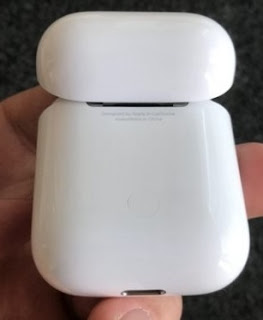
charging back box near the harbor of charging to position radio button, press and hold until LED lights are placed between two AirPods emit white light and flashes slowly.
Open Bluetooth settings and other devices in the same way the installation process, a list of Bluetooth devices to select the AirPods.
How Apple AirPods pair with other Bluetooth devices