Showing posts with label iPhone. Show all posts

How to Prevent iOS Notifications to Stop Playing Multimedia

How to Prevent iOS Notifications to Stop Playing Multimedia

How to Prevent iOS Notifications to Stop Playing Multimedia  - What is more relaxing to listen to the music that we like? Yes, listen to it without being interrupted by the iOS notifications! Like scratches on old vinyl they blew up a moment of reproduction, so notifications on iPhone spoil the atmosphere (if you want to call it) that is created when we hear things that we prefer. So how to prevent these notifications to interrupt the reproduction of our media? There are three possibilities, andiamole to discover together!
SILENT KEY
How to Prevent iOS Notifications to Stop Playing Multimedia

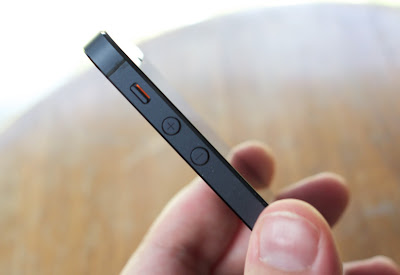
The simplest option for changing any warning is to use the switch on the left side of your smartphone. So we can always listen to music (or any other media), but we will not be interrupted by the sound of notifications. Incoming calls, however, are an exception, however, will interrupt playback until you turn on the answering machine (or the call will be interrupted).
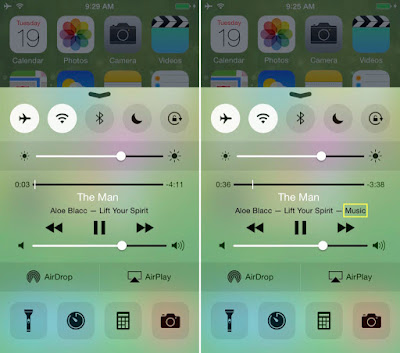
Who is in possession of one of the latest iPad, such as the ' iPad Air 2 , which do not have a swith to silently put the device, can find the silent button in the Control Center, which is activated by a swipe upwards.
DO NOT DISTURB
How to Prevent iOS Notifications to Stop Playing Multimedia
In the Control Center we can also find the key DND, that depicts the white crescent at the center of the purple disk. This mode turns off the sound of notifications and calls, is the solution for those who do not want any distrubo, in fact. Still it allows you to set a few exceptions, just go into Settings and look for the DND.
 Using this method we also have another advantage over the silent switch: once activated will see a small half-moon at the top of the screen icon that will act as a reminder, so we will remember to return to the mode you prefer.
APP FOR SINGLE
How to Prevent iOS Notifications to Stop Playing Multimedia

If you prefer a more precise approach, in order to stop only some notification, just go to Settings and look for the Notifications item. Here we can disable notifications of various applications, one by one.
If you have additional questions or concerns esprimeteli well with a comment, I will reply as soon as possible!


How to Remove camera connection from the iPhone lock screen

How to Remove camera connection from the iPhone lock screen

How to Remove the camera connection from the iPhone lock screen - as you noticed, there is a shortcut for the Camera app on your iPhone, right on the lock screen of your iPhone. In case this bothers you, you can remove the shortcut to the camera from the lock screen of your iPhone.
In order to remove the camera connection from the iPhone screen lock, you must first turn restrictions on your iPhone, after which your iPhone will allow you to remove the link to the camera.
Remove the camera connection from the iPhone lock screen
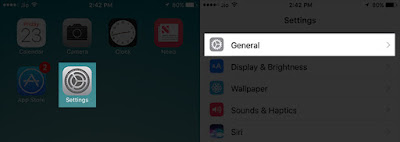
1. Open the settings on your iPhone.
How to Remove camera connection from the iPhone lock screen

2. Next, tap General.

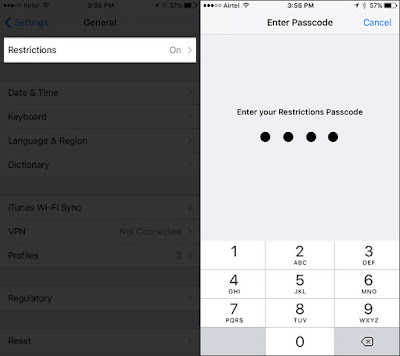
3. On the next screen, scroll and tap restrictions.
How to Remove camera connection from the iPhone lock screen
4. In the event that no restrictions on your iPhone, you will see the "Enable Restrictions option is still enabled sonoavete". Tap Enable restrictions.
5. On the following screens, you will be asked to enter an access code restrictions, re-enter the access code to check the restrictions. Enter four digits and re-enter it again when prompted.
Note: Your access to the restricted code is the same code used to access the device. It is a new access code that only works to enable and disable the restrictions on your iPhone.
Make sure you write down your passcode and keep it in a safe place. You will not be able to disable the restrictions without entering the access code.
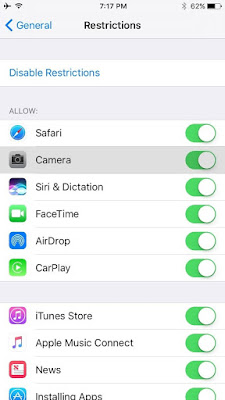
6. Once the Restrictions passcode is set up on your iPhone, you will see the option Enable or disable Restrictions on the screen of your iPhone.
How to Remove camera connection from the iPhone lock screen

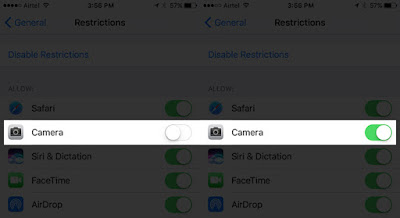
7. So, look for a section with the "Allow" label and switch OFF the camera option by moving the cursor to the OFF position.
How to Remove camera connection from the iPhone lock screen

We have done!